Getting Started
Installation & Setup
Requirements
GPAL targets .NET Framework 4.8 and requires Visual Studio 2017 or later. You will need the GPAL NuGet package. That's it for browser automation, since GPAL's default engine (SDi's custom PuppeteerPort implementation) talks to Chrome directly with no separate driver to install. A WebDriver binary is only needed if you choose a Selenium-based engine.
Adding GPAL to Your Project
Install the GPAL NuGet package via the Visual Studio Package Manager or .NET CLI, then add the using directives for the namespaces you need.
using GenerallyPositive;
using GenerallyPositive
using GenerallyPositive
using static GenerallyPositive
GPAL creates GPAL.yaml with default settings on its first run in a directory, and loads it automatically on every run after that. There is nothing to call manually. Edit the file by hand, or call GPAL.SaveSettings() to persist settings you changed at runtime.
Simple Project Template
A Simple Project Template is included in the GPAL solution. Copy it as a starting point. It includes correct references, a basic Program.cs, and the standard folder layout.
GPAL requires .NET Framework 4.8. Projects targeting .NET Core or .NET 5+ are not currently supported.
Documentation Example
Documentation
Showing off some plain text in these paragraphs eligendi laboriosam illo nostrum corporis at libero vel voluptas? Expedita, facere dolores voluptatem ad ab rem assumenda soluta!
Lorem ipsum dolor sit amet consectetur adipisicing elit. Obcaecati, iste distinctio veritatis eligendi laboriosam illo nostrum corporis at libero vel voluptas? Expedita, facere dolores voluptatem ad ab rem assumenda soluta!
Lorem ipsum dolor sit amet consectetur adipisicing elit. Obcaecati, iste distinctio veritatis eligendi laboriosam illo nostrum corporis at libero vel voluptas? Expedita, facere dolores voluptatem ad ab rem assumenda soluta!
Category
-
Endpoint
Lorem ipsum dolor sit amet consectetur adipisicing elit. Quo veniam mollitia excepturi animi eum illum non libero sapiente provident assumenda, delectus voluptatum nobis sed dolorem adipisci laudantium incidunt. Error, ratione?
-
Enpoint
Lorem ipsum dolor sit amet consectetur adipisicing elit. Quo veniam mollitia excepturi animi eum illum non libero sapiente provident assumenda, delectus voluptatum nobis sed dolorem adipisci laudantium incidunt. Error, ratione?
-
Enpoint
Lorem ipsum dolor sit amet consectetur adipisicing elit. Quo veniam mollitia excepturi animi eum illum non libero sapiente provident assumenda, delectus voluptatum nobis sed dolorem adipisci laudantium incidunt. Error, ratione?
-
Enpoint
Lorem ipsum dolor sit amet consectetur adipisicing elit. Quo veniam mollitia excepturi animi eum illum non libero sapiente provident assumenda, delectus voluptatum nobis sed dolorem adipisci laudantium incidunt. Error, ratione?
Other formats
Here you can find different accents and emphasis sit amet consectetur adipisicing elit. Obcaecati, iste distinctio veritatis eligendi laboriosam illo nostrum corporis at libero vel voluptas? Expedita, facere dolores voluptatem ad ab rem assumenda soluta!
This is a link and how it could look like bestlinkinthebeautifulworld. Obcaecati, iste distinctio veritatis eligendi laboriosam illo nostrum corporis at libero vel voluptas? Expedita, facere dolores voluptatem ad ab rem assumenda soluta!
Here's just some classic bold text adipisicing elit. Obcaecati, iste distinctio veritatis eligendi laboriosam notBoldSecondbestlinkinthebeautifulworld illo nostrum corporis at libero vel voluptas? Expedita, facere dolores voluptatem ad ab rem assumenda soluta!
Obcaecati, iste distinctio veritatis eligendi laboriosam adipisicing elit illo nostrum corporis at adipisicing elit libero vel voluptas? Expedita, adipisicing facere dolores voluptatem ad ab rem assumenda soluta!
Other cuple of colors in case we want to emphasize several ways adipisicing elit. Obcaecati, iste distinctio veritatis eligendi laboriosam adipisicing elit illo nostrum corporis at voluptatem libero vel voluptas? Expedita, facere dolores voluptatem ad ab rem assumenda soluta!
Adding Images to the content
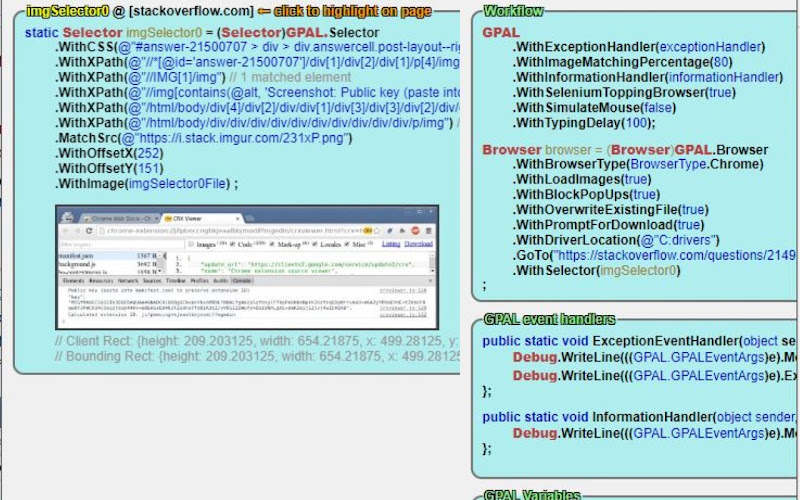
Lorem ipsum dolor sit amet consectetur adipisicing elit. Obcaecati, iste distinctio veritatis eligendi laboriosam illo nostrum corporis at libero vel voluptas? Expedita, facere dolores voluptatem ad ab rem assumenda soluta!
Lorem ipsum dolor, sit amet consectetur adipisicing elit. Quod veniam, quam ad expedita laborum sed at voluptates culpa ipsam ut vel. Ullam temporibus a mollitia quod aliquam ratione exercitationem nesciunt.
Lorem ipsum dolor sit amet consectetur adipisicing elit. Obcaecati, iste distinctio veritatis eligendi laboriosam illo nostrum corporis at libero vel voluptas? Expedita, facere dolores voluptatem ad ab rem assumenda soluta!
Lorem ipsum dolor, sit amet consectetur adipisicing elit. Quod veniam, quam ad expedita laborum sed at voluptates culpa ipsam ut vel. Ullam temporibus a mollitia quod aliquam ratione exercitationem nesciunt.
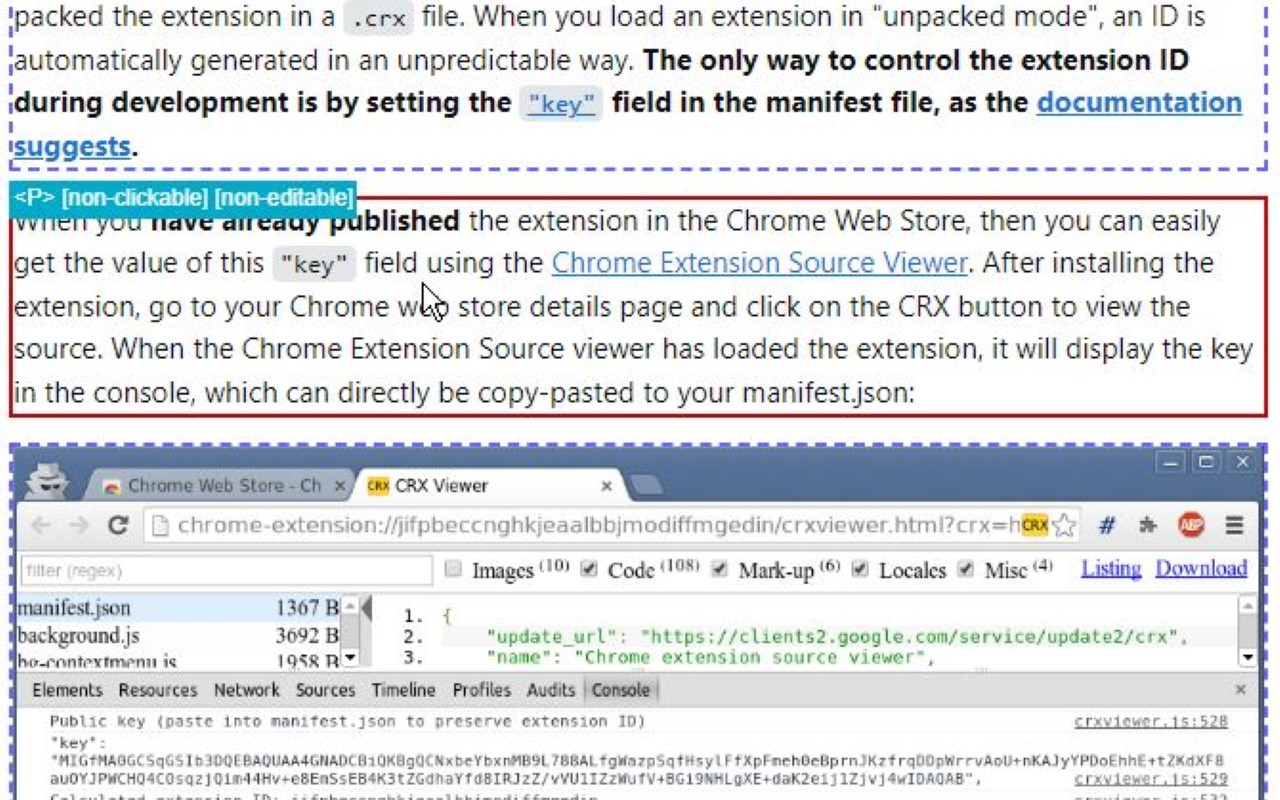
Lorem ipsum dolor sit amet consectetur adipisicing elit. Obcaecati, iste distinctio veritatis eligendi laboriosam illo nostrum corporis at libero vel voluptas? Expedita, facere dolores voluptatem ad ab rem assumenda soluta!
Coding Blocks
Lorem ipsum dolor sit amet consectetur adipisicing elit. Repudiandae quas consequuntur illo numquam assumenda autem exercitationem distinctio perspiciatis in natus. Eius dicta similique ipsam ipsa minima, nemo quae enim tempore.
GPAL
.CallIfNotFound(GenericCallIfNotFound)
.WithPublishToConsole();
//System.Drawing.Rectangle windowSize = new System.Drawing.Rectangle(10, 10, 1500, 1024);
// NOTE: we have to set browser = before we execute any steps
// this is due to the 'GenericCallIfNotFound' which might throw an exception, and BankScraper will not have the browser set when it calls scraper.Close()
// until the complete fluent line gets executed (meaning every step, meaning browser is not set until everything else succeeds)
browser = GPAL.Browser
.WithBrowserType(Enums.BrowserType.Chrome)
.WithProfileDataDirectory(ChromeProfileLocation)
.WithUseAutomationEngine(AutomationEngine.Selenium)
.WithWindowSize(new System.Drawing.Rectangle(0,0,1920,1080))
.ToGPALObject();
Documentation
Showing off some plain text in these paragraphs eligendi laboriosam illo nostrum corporis at libero vel voluptas? Expedita, facere dolores voluptatem ad ab rem assumenda soluta!
Lorem ipsum dolor sit amet consectetur adipisicing elit. Obcaecati, iste distinctio veritatis eligendi laboriosam illo nostrum corporis at libero vel voluptas? Expedita, facere dolores voluptatem ad ab rem assumenda soluta!
Lorem ipsum dolor sit amet consectetur adipisicing elit. Obcaecati, iste distinctio veritatis eligendi laboriosam illo nostrum corporis at libero vel voluptas? Expedita, facere dolores voluptatem ad ab rem assumenda soluta!
Category
-
Endpoint
Lorem ipsum dolor sit amet consectetur adipisicing elit. Quo veniam mollitia excepturi animi eum illum non libero sapiente provident assumenda, delectus voluptatum nobis sed dolorem adipisci laudantium incidunt. Error, ratione?
-
Enpoint
Lorem ipsum dolor sit amet consectetur adipisicing elit. Quo veniam mollitia excepturi animi eum illum non libero sapiente provident assumenda, delectus voluptatum nobis sed dolorem adipisci laudantium incidunt. Error, ratione?
-
Enpoint
Lorem ipsum dolor sit amet consectetur adipisicing elit. Quo veniam mollitia excepturi animi eum illum non libero sapiente provident assumenda, delectus voluptatum nobis sed dolorem adipisci laudantium incidunt. Error, ratione?
-
Enpoint
Lorem ipsum dolor sit amet consectetur adipisicing elit. Quo veniam mollitia excepturi animi eum illum non libero sapiente provident assumenda, delectus voluptatum nobis sed dolorem adipisci laudantium incidunt. Error, ratione?
Other formats
Here you can find different accents and emphasis sit amet consectetur adipisicing elit. Obcaecati, iste distinctio veritatis eligendi laboriosam illo nostrum corporis at libero vel voluptas? Expedita, facere dolores voluptatem ad ab rem assumenda soluta!
This is a link and how it could look like bestlinkinthebeautifulworld. Obcaecati, iste distinctio veritatis eligendi laboriosam illo nostrum corporis at libero vel voluptas? Expedita, facere dolores voluptatem ad ab rem assumenda soluta!
Here's just some classic bold text adipisicing elit. Obcaecati, iste distinctio veritatis eligendi laboriosam notBoldSecondbestlinkinthebeautifulworld illo nostrum corporis at libero vel voluptas? Expedita, facere dolores voluptatem ad ab rem assumenda soluta!
Obcaecati, iste distinctio veritatis eligendi laboriosam adipisicing elit illo nostrum corporis at adipisicing elit libero vel voluptas? Expedita, adipisicing facere dolores voluptatem ad ab rem assumenda soluta!
Other cuple of colors in case we want to emphasize several ways adipisicing elit. Obcaecati, iste distinctio veritatis eligendi laboriosam adipisicing elit illo nostrum corporis at voluptatem libero vel voluptas? Expedita, facere dolores voluptatem ad ab rem assumenda soluta!
Adding Images to the content
Lorem ipsum dolor sit amet consectetur adipisicing elit. Obcaecati, iste distinctio veritatis eligendi laboriosam illo nostrum corporis at libero vel voluptas? Expedita, facere dolores voluptatem ad ab rem assumenda soluta! Lorem ipsum dolor, sit amet consectetur adipisicing elit. Quod veniam, quam ad expedita laborum sed at voluptates culpa ipsam ut vel. Ullam temporibus a mollitia quod aliquam ratione exercitationem nesciunt.
Lorem ipsum dolor sit amet consectetur adipisicing elit. Obcaecati, iste distinctio veritatis eligendi laboriosam illo nostrum corporis at libero vel voluptas? Expedita, facere dolores voluptatem ad ab rem assumenda soluta! Lorem ipsum dolor, sit amet consectetur adipisicing elit. Quod veniam, quam ad expedita laborum sed at voluptates culpa ipsam ut vel. Ullam temporibus a mollitia quod aliquam ratione exercitationem nesciunt.
Lorem ipsum dolor sit amet consectetur adipisicing elit. Obcaecati, iste distinctio veritatis eligendi laboriosam illo nostrum corporis at libero vel voluptas? Expedita, facere dolores voluptatem ad ab rem assumenda soluta!
Coding Blocks
Lorem ipsum dolor sit amet consectetur adipisicing elit. Repudiandae quas consequuntur illo numquam assumenda autem exercitationem distinctio perspiciatis in natus. Eius dicta similique ipsam ipsa minima, nemo quae enim tempore.
GPAL
.CallIfNotFound(GenericCallIfNotFound)
.WithPublishToConsole();
//System.Drawing.Rectangle windowSize = new System.Drawing.Rectangle(10, 10, 1500, 1024);
// NOTE: we have to set browser = before we execute any steps
// this is due to the 'GenericCallIfNotFound' which might throw an exception, and BankScraper will not have the browser set when it calls scraper.Close()
// until the complete fluent line gets executed (meaning every step, meaning browser is not set until everything else succeeds)
browser = GPAL.Browser
.WithBrowserType(Enums.BrowserType.Chrome)
.WithProfileDataDirectory(ChromeProfileLocation)
.WithUseAutomationEngine(AutomationEngine.Selenium)
.WithWindowSize(new System.Drawing.Rectangle(0,0,1920,1080))
.ToGPALObject();