- Getting Started
- Basic Concepts
- Core Concepts
- Data Operations
- Form Building
- Integrations
- Advanced Topics
- Misc
- References
Core Concepts
- Named-Constant Structs: An Enum That Also Takes Freehand Values
- The Fluent Interface
- The GPAL Factory
- Value Objects: More Than a String
- The Selector System
- Match Criteria & Filtering
- Units of Work
- GPAL Actions
- Why ToGPALObject()
- Configuration Hierarchy
- Conditional Logic
- Callback Return Values: CallIfStatus
- The Event System
- GPAL.Logger: Turning Events Into Files
- ElementAssistant: Non-Standard Element Actions in Callbacks
- Persistent Selectors: Handling Nags and Popups
- Fallback Actions: Automatic Recovery on Error
- Credential Management
- Getting Multiple Results: WithAllThatMatch & Pagination
- Static API Key Credentials
Core Concepts
The Fluent Interface
One Pattern, Every Subsystem
Whether you are controlling a browser, automating a desktop application, reading from Excel, converting data formats, sending email, or querying a database. GPAL uses the same fluent chaining pattern throughout. There is no context switching, no separate API to learn for each subsystem. You learn the pattern once and apply it everywhere.
Reads Like a Workflow
A GPAL workflow reads like plain English instructions. Non-developers can follow what a workflow does without understanding C#. This is not an accident. It is the core design goal. The fluent interface enforces correct usage (defaults are used if none supplied) so the workflow runs as intended. The method names describe the intent, not the implementation.
// Browser automation - reads like instructions
browser
// Data operations - same pattern, different subsystem
IGPALGrid<string> grid = GPAL
grid
grid
GPAL supports 3 browsers and 7 engine variants. 21 combinations on paper, 19 that are actually usable (Puppeteer does not work with Firefox). Your workflow code is identical across all of them. Switching engines or browsers is a single configuration change, not a rewrite.
Why This Matters
Traditional automation code mixes infrastructure concerns with workflow logic, making it brittle, hard to read, and difficult to maintain. GPAL keeps configuration and action separate so workflows are always clean. Workflows become self-documenting artifacts that the whole team -- developers, QA, analysts, managers -- can read and validate. This is why GPAL exists.
// A plain string works -- no Selector variable needed
browser
// Name a selector for cleaner logs and error messages
Selector loginBtn = GPAL
browser
A plain string is implicitly converted into a Selector for you. Reach for the full GPAL.Selector form when you need CSS and XPath fallbacks or a named selector.
IntelliSense will not always narrow to exactly the right next step. This is a natural consequence of how C# interfaces compose. Check the Endpoints docs when a chain does not look right.
Documentation Example
Documentation
Showing off some plain text in these paragraphs eligendi laboriosam illo nostrum corporis at libero vel voluptas? Expedita, facere dolores voluptatem ad ab rem assumenda soluta!
Lorem ipsum dolor sit amet consectetur adipisicing elit. Obcaecati, iste distinctio veritatis eligendi laboriosam illo nostrum corporis at libero vel voluptas? Expedita, facere dolores voluptatem ad ab rem assumenda soluta!
Lorem ipsum dolor sit amet consectetur adipisicing elit. Obcaecati, iste distinctio veritatis eligendi laboriosam illo nostrum corporis at libero vel voluptas? Expedita, facere dolores voluptatem ad ab rem assumenda soluta!
Category
-
Endpoint
Lorem ipsum dolor sit amet consectetur adipisicing elit. Quo veniam mollitia excepturi animi eum illum non libero sapiente provident assumenda, delectus voluptatum nobis sed dolorem adipisci laudantium incidunt. Error, ratione?
-
Enpoint
Lorem ipsum dolor sit amet consectetur adipisicing elit. Quo veniam mollitia excepturi animi eum illum non libero sapiente provident assumenda, delectus voluptatum nobis sed dolorem adipisci laudantium incidunt. Error, ratione?
-
Enpoint
Lorem ipsum dolor sit amet consectetur adipisicing elit. Quo veniam mollitia excepturi animi eum illum non libero sapiente provident assumenda, delectus voluptatum nobis sed dolorem adipisci laudantium incidunt. Error, ratione?
-
Enpoint
Lorem ipsum dolor sit amet consectetur adipisicing elit. Quo veniam mollitia excepturi animi eum illum non libero sapiente provident assumenda, delectus voluptatum nobis sed dolorem adipisci laudantium incidunt. Error, ratione?
Other formats
Here you can find different accents and emphasis sit amet consectetur adipisicing elit. Obcaecati, iste distinctio veritatis eligendi laboriosam illo nostrum corporis at libero vel voluptas? Expedita, facere dolores voluptatem ad ab rem assumenda soluta!
This is a link and how it could look like bestlinkinthebeautifulworld. Obcaecati, iste distinctio veritatis eligendi laboriosam illo nostrum corporis at libero vel voluptas? Expedita, facere dolores voluptatem ad ab rem assumenda soluta!
Here's just some classic bold text adipisicing elit. Obcaecati, iste distinctio veritatis eligendi laboriosam notBoldSecondbestlinkinthebeautifulworld illo nostrum corporis at libero vel voluptas? Expedita, facere dolores voluptatem ad ab rem assumenda soluta!
Obcaecati, iste distinctio veritatis eligendi laboriosam adipisicing elit illo nostrum corporis at adipisicing elit libero vel voluptas? Expedita, adipisicing facere dolores voluptatem ad ab rem assumenda soluta!
Other cuple of colors in case we want to emphasize several ways adipisicing elit. Obcaecati, iste distinctio veritatis eligendi laboriosam adipisicing elit illo nostrum corporis at voluptatem libero vel voluptas? Expedita, facere dolores voluptatem ad ab rem assumenda soluta!
Adding Images to the content
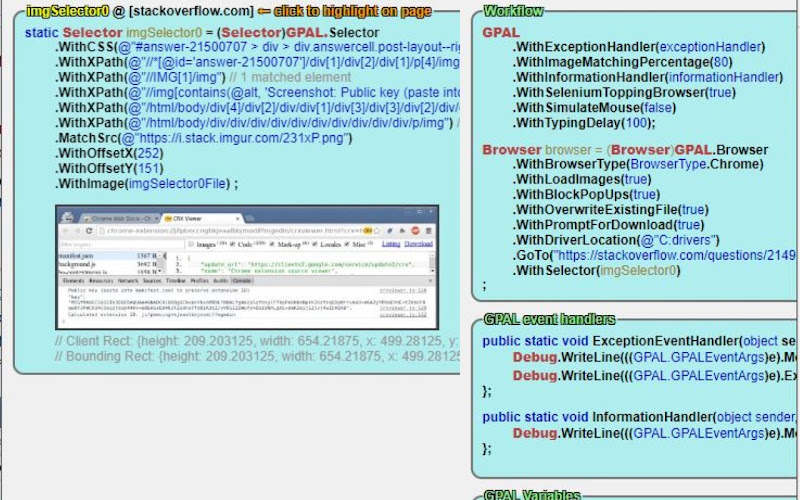
Lorem ipsum dolor sit amet consectetur adipisicing elit. Obcaecati, iste distinctio veritatis eligendi laboriosam illo nostrum corporis at libero vel voluptas? Expedita, facere dolores voluptatem ad ab rem assumenda soluta!
Lorem ipsum dolor, sit amet consectetur adipisicing elit. Quod veniam, quam ad expedita laborum sed at voluptates culpa ipsam ut vel. Ullam temporibus a mollitia quod aliquam ratione exercitationem nesciunt.
Lorem ipsum dolor sit amet consectetur adipisicing elit. Obcaecati, iste distinctio veritatis eligendi laboriosam illo nostrum corporis at libero vel voluptas? Expedita, facere dolores voluptatem ad ab rem assumenda soluta!
Lorem ipsum dolor, sit amet consectetur adipisicing elit. Quod veniam, quam ad expedita laborum sed at voluptates culpa ipsam ut vel. Ullam temporibus a mollitia quod aliquam ratione exercitationem nesciunt.
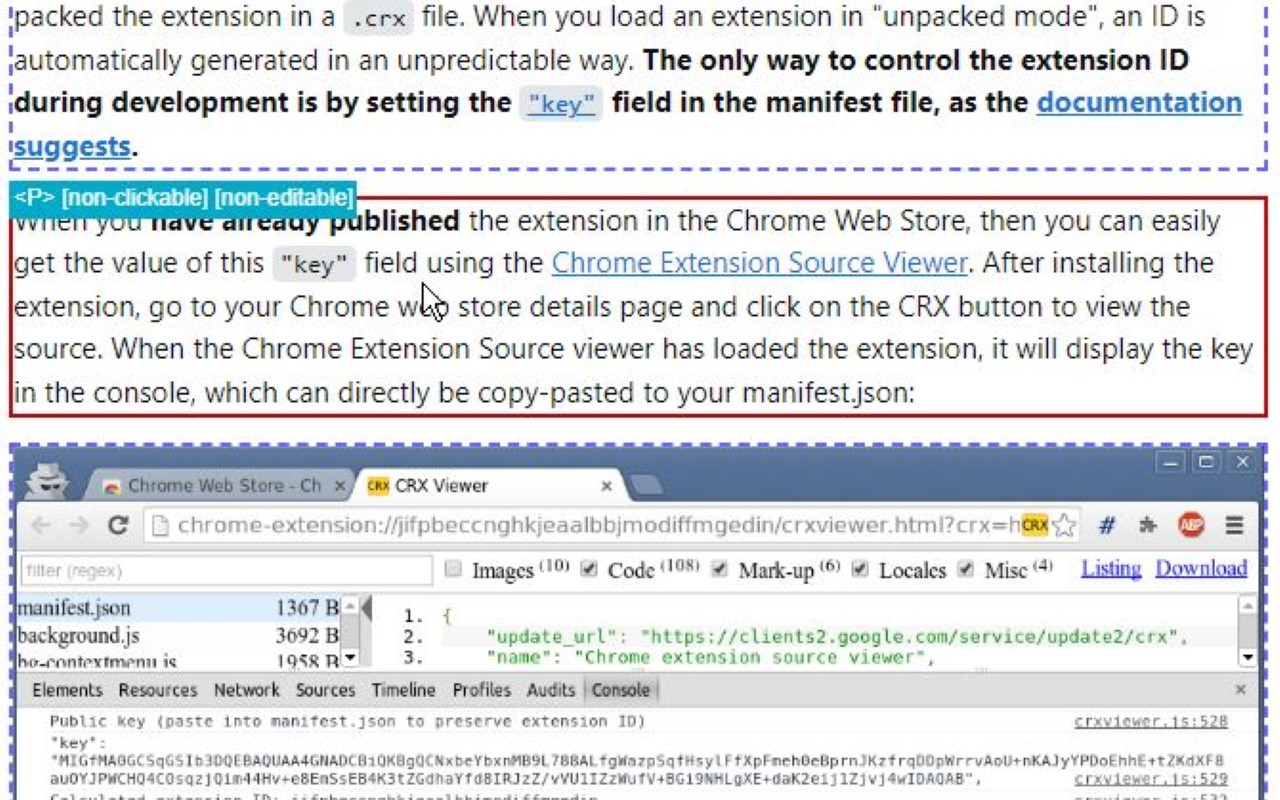
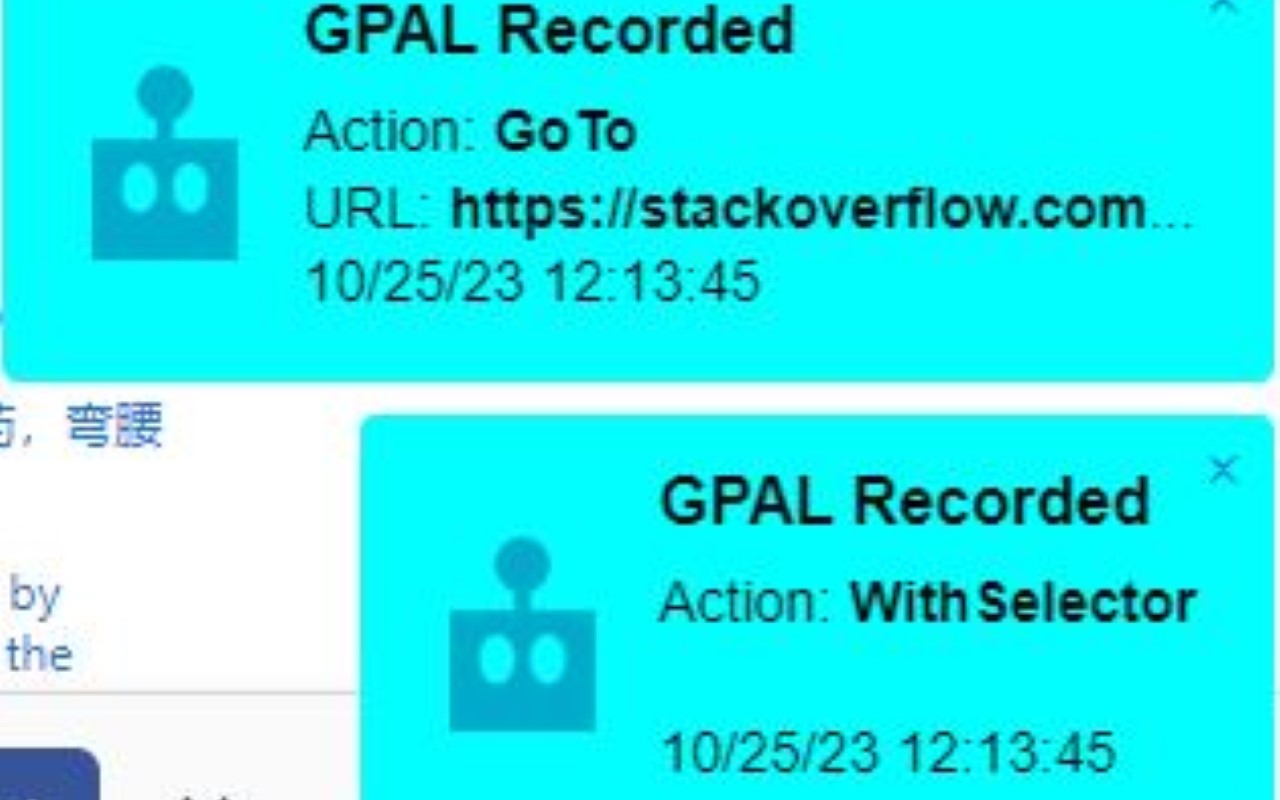
Lorem ipsum dolor sit amet consectetur adipisicing elit. Obcaecati, iste distinctio veritatis eligendi laboriosam illo nostrum corporis at libero vel voluptas? Expedita, facere dolores voluptatem ad ab rem assumenda soluta!
Coding Blocks
Lorem ipsum dolor sit amet consectetur adipisicing elit. Repudiandae quas consequuntur illo numquam assumenda autem exercitationem distinctio perspiciatis in natus. Eius dicta similique ipsam ipsa minima, nemo quae enim tempore.
GPAL
.CallIfNotFound(GenericCallIfNotFound)
.WithPublishToConsole();
//System.Drawing.Rectangle windowSize = new System.Drawing.Rectangle(10, 10, 1500, 1024);
// NOTE: we have to set browser = before we execute any steps
// this is due to the 'GenericCallIfNotFound' which might throw an exception, and BankScraper will not have the browser set when it calls scraper.Close()
// until the complete fluent line gets executed (meaning every step, meaning browser is not set until everything else succeeds)
browser = GPAL.Browser
.WithBrowserType(Enums.BrowserType.Chrome)
.WithProfileDataDirectory(ChromeProfileLocation)
.WithUseAutomationEngine(AutomationEngine.Selenium)
.WithWindowSize(new System.Drawing.Rectangle(0,0,1920,1080))
.ToGPALObject();
Documentation
Showing off some plain text in these paragraphs eligendi laboriosam illo nostrum corporis at libero vel voluptas? Expedita, facere dolores voluptatem ad ab rem assumenda soluta!
Lorem ipsum dolor sit amet consectetur adipisicing elit. Obcaecati, iste distinctio veritatis eligendi laboriosam illo nostrum corporis at libero vel voluptas? Expedita, facere dolores voluptatem ad ab rem assumenda soluta!
Lorem ipsum dolor sit amet consectetur adipisicing elit. Obcaecati, iste distinctio veritatis eligendi laboriosam illo nostrum corporis at libero vel voluptas? Expedita, facere dolores voluptatem ad ab rem assumenda soluta!
Category
-
Endpoint
Lorem ipsum dolor sit amet consectetur adipisicing elit. Quo veniam mollitia excepturi animi eum illum non libero sapiente provident assumenda, delectus voluptatum nobis sed dolorem adipisci laudantium incidunt. Error, ratione?
-
Enpoint
Lorem ipsum dolor sit amet consectetur adipisicing elit. Quo veniam mollitia excepturi animi eum illum non libero sapiente provident assumenda, delectus voluptatum nobis sed dolorem adipisci laudantium incidunt. Error, ratione?
-
Enpoint
Lorem ipsum dolor sit amet consectetur adipisicing elit. Quo veniam mollitia excepturi animi eum illum non libero sapiente provident assumenda, delectus voluptatum nobis sed dolorem adipisci laudantium incidunt. Error, ratione?
-
Enpoint
Lorem ipsum dolor sit amet consectetur adipisicing elit. Quo veniam mollitia excepturi animi eum illum non libero sapiente provident assumenda, delectus voluptatum nobis sed dolorem adipisci laudantium incidunt. Error, ratione?
Other formats
Here you can find different accents and emphasis sit amet consectetur adipisicing elit. Obcaecati, iste distinctio veritatis eligendi laboriosam illo nostrum corporis at libero vel voluptas? Expedita, facere dolores voluptatem ad ab rem assumenda soluta!
This is a link and how it could look like bestlinkinthebeautifulworld. Obcaecati, iste distinctio veritatis eligendi laboriosam illo nostrum corporis at libero vel voluptas? Expedita, facere dolores voluptatem ad ab rem assumenda soluta!
Here's just some classic bold text adipisicing elit. Obcaecati, iste distinctio veritatis eligendi laboriosam notBoldSecondbestlinkinthebeautifulworld illo nostrum corporis at libero vel voluptas? Expedita, facere dolores voluptatem ad ab rem assumenda soluta!
Obcaecati, iste distinctio veritatis eligendi laboriosam adipisicing elit illo nostrum corporis at adipisicing elit libero vel voluptas? Expedita, adipisicing facere dolores voluptatem ad ab rem assumenda soluta!
Other cuple of colors in case we want to emphasize several ways adipisicing elit. Obcaecati, iste distinctio veritatis eligendi laboriosam adipisicing elit illo nostrum corporis at voluptatem libero vel voluptas? Expedita, facere dolores voluptatem ad ab rem assumenda soluta!
Adding Images to the content
Lorem ipsum dolor sit amet consectetur adipisicing elit. Obcaecati, iste distinctio veritatis eligendi laboriosam illo nostrum corporis at libero vel voluptas? Expedita, facere dolores voluptatem ad ab rem assumenda soluta! Lorem ipsum dolor, sit amet consectetur adipisicing elit. Quod veniam, quam ad expedita laborum sed at voluptates culpa ipsam ut vel. Ullam temporibus a mollitia quod aliquam ratione exercitationem nesciunt.
Lorem ipsum dolor sit amet consectetur adipisicing elit. Obcaecati, iste distinctio veritatis eligendi laboriosam illo nostrum corporis at libero vel voluptas? Expedita, facere dolores voluptatem ad ab rem assumenda soluta! Lorem ipsum dolor, sit amet consectetur adipisicing elit. Quod veniam, quam ad expedita laborum sed at voluptates culpa ipsam ut vel. Ullam temporibus a mollitia quod aliquam ratione exercitationem nesciunt.
Lorem ipsum dolor sit amet consectetur adipisicing elit. Obcaecati, iste distinctio veritatis eligendi laboriosam illo nostrum corporis at libero vel voluptas? Expedita, facere dolores voluptatem ad ab rem assumenda soluta!
Coding Blocks
Lorem ipsum dolor sit amet consectetur adipisicing elit. Repudiandae quas consequuntur illo numquam assumenda autem exercitationem distinctio perspiciatis in natus. Eius dicta similique ipsam ipsa minima, nemo quae enim tempore.
GPAL
.CallIfNotFound(GenericCallIfNotFound)
.WithPublishToConsole();
//System.Drawing.Rectangle windowSize = new System.Drawing.Rectangle(10, 10, 1500, 1024);
// NOTE: we have to set browser = before we execute any steps
// this is due to the 'GenericCallIfNotFound' which might throw an exception, and BankScraper will not have the browser set when it calls scraper.Close()
// until the complete fluent line gets executed (meaning every step, meaning browser is not set until everything else succeeds)
browser = GPAL.Browser
.WithBrowserType(Enums.BrowserType.Chrome)
.WithProfileDataDirectory(ChromeProfileLocation)
.WithUseAutomationEngine(AutomationEngine.Selenium)
.WithWindowSize(new System.Drawing.Rectangle(0,0,1920,1080))
.ToGPALObject();