- Getting Started
- Basic Concepts
- Core Concepts
- Featured
- Data Operations
- Form Building
- Integrations
- AI and LLM
- Misc
- References
Core Concepts
- Named-Constant Structs: An Enum That Also Takes Freehand Values
- Value Objects: More Than a String
- The Selector System
- Match Criteria & Filtering
- GPAL Actions
- Configuration Hierarchy
- Conditional Logic
- Callback Return Values: CallIfStatus
- The Event System
- GPAL.Logger: Turning Events Into Files
- ElementAssistant: Non-Standard Element Actions in Callbacks
- Persistent Selectors: Handling Nags and Popups
- Fallback Actions: Automatic Recovery on Error
- Credential Management
- Static API Key Credentials
Core Concepts
GPAL.Logger: Turning Events Into Files
A Logger Is Where Events Land
A logger has no Log method. You build one with a fluent chain, end it with ToGPALObject, and attach it with GPAL.WithPublishToLogger. After that, every event published anywhere in the run is offered to it, and it writes the ones it subscribed to. Nothing in the workflow has to know a logger exists. Each entry is one line carrying the timestamp, the event type, the name of the method that raised the event, and the message. Note that this is the method that raised it, not the method that wrote it, so a line points at the code you care about. WithLogEventTypes narrows what a logger takes, defaulting to everything. Loggers accumulate, so several can be attached at once and each writes only what it asked for. GPAL.RemoveLogger detaches one when a phase of work is over.
IGPALLogger runLog = GPAL
GPAL
// From here on, anything published lands in the file
GPAL
// A second logger for errors alone, alongside the first
IGPALLogger errorLog = GPAL
errorLog
GPAL
// A stretch of work logged to its own file, then done with
GPAL
// Where it actually wrote, which is not always where you thought you told it to
GPALFile written = runLog
Organizing Log Files: Directories, Filenames, and Entries
Long-running or repeated automations generate a lot of entries, so a logger gives you independent controls for organizing them. WithDirectoryStructure builds a date-based folder hierarchy under the root directory. The folders are created the first time they are needed. WithFilenamePattern appends a timestamp to the filename, so the logger rotates into a new file as time passes without any extra code. WithLoggingFormat sets the timestamp format at the start of each entry, and WithDelimiter sets the character between the fields on the line. Both can be changed at any time, on an attached logger, and the next entry uses the new setting. Because a structure and a pattern can both move the file, LogDirectory, LogFilename, and LogFullPath report where the logger actually wrote. That matters when something else needs the file, such as mailing the log at the end of a run.
// the mail object first, then the server settings and the envelope on it
IGPALMail mail = GPAL
IGPALLogger logger = GPAL
GPAL
GPAL
// Writes, for example:
// C:Logs2026821automation_20260821091500
// 2026-08-21 09:15:00 | NOTICE | Main | Run started
// Mail the log when the run is over, wherever it ended up
The file extension decides nothing. A logger writes lines whatever you call the file. Directory structure, filename pattern, entry timestamp format, and delimiter are each set on their own, so use whichever combination the run needs.
Logging to a Database Instead of a File
WithDatabase redirects a logger to a table. Each entry becomes a row through the insert the GPALDatabase was configured with, and the row carries the event type in front of the message, because a database fills in its own timestamp but cannot know what kind of event it was. This is what you want when several processes or machines log to one queryable place rather than to separate local files. A write that cannot work does not take the run down. The failure lands on the database as LastError, carrying the server error number, the SQL that ran, which row was being written, and that row's values, so a workflow can look afterwards rather than wrap every publish in a try.
GPALDatabase auditDb = (GPALDatabase)GPAL
IGPALLogger auditLog = GPAL
auditLog
GPAL
GPAL
// Row written: NOTICE | Invoice batch completed
// Nothing threw, so ask afterwards whether it landed
if (null != auditDb
GPAL
A logger that cannot write says so by publishing an event, which would normally reach every logger, including the broken one. GPAL keeps events raised while a logger is writing away from loggers, so a bad path or an unreachable database reports itself once on the console and handler channels rather than looping. If a logger is attached with no file and no database, that is what it tells you.
Documentation Example
Documentation
Showing off some plain text in these paragraphs eligendi laboriosam illo nostrum corporis at libero vel voluptas? Expedita, facere dolores voluptatem ad ab rem assumenda soluta!
Lorem ipsum dolor sit amet consectetur adipisicing elit. Obcaecati, iste distinctio veritatis eligendi laboriosam illo nostrum corporis at libero vel voluptas? Expedita, facere dolores voluptatem ad ab rem assumenda soluta!
Lorem ipsum dolor sit amet consectetur adipisicing elit. Obcaecati, iste distinctio veritatis eligendi laboriosam illo nostrum corporis at libero vel voluptas? Expedita, facere dolores voluptatem ad ab rem assumenda soluta!
Category
-
Endpoint
Lorem ipsum dolor sit amet consectetur adipisicing elit. Quo veniam mollitia excepturi animi eum illum non libero sapiente provident assumenda, delectus voluptatum nobis sed dolorem adipisci laudantium incidunt. Error, ratione?
-
Enpoint
Lorem ipsum dolor sit amet consectetur adipisicing elit. Quo veniam mollitia excepturi animi eum illum non libero sapiente provident assumenda, delectus voluptatum nobis sed dolorem adipisci laudantium incidunt. Error, ratione?
-
Enpoint
Lorem ipsum dolor sit amet consectetur adipisicing elit. Quo veniam mollitia excepturi animi eum illum non libero sapiente provident assumenda, delectus voluptatum nobis sed dolorem adipisci laudantium incidunt. Error, ratione?
-
Enpoint
Lorem ipsum dolor sit amet consectetur adipisicing elit. Quo veniam mollitia excepturi animi eum illum non libero sapiente provident assumenda, delectus voluptatum nobis sed dolorem adipisci laudantium incidunt. Error, ratione?
Other formats
Here you can find different accents and emphasis sit amet consectetur adipisicing elit. Obcaecati, iste distinctio veritatis eligendi laboriosam illo nostrum corporis at libero vel voluptas? Expedita, facere dolores voluptatem ad ab rem assumenda soluta!
This is a link and how it could look like bestlinkinthebeautifulworld. Obcaecati, iste distinctio veritatis eligendi laboriosam illo nostrum corporis at libero vel voluptas? Expedita, facere dolores voluptatem ad ab rem assumenda soluta!
Here's just some classic bold text adipisicing elit. Obcaecati, iste distinctio veritatis eligendi laboriosam notBoldSecondbestlinkinthebeautifulworld illo nostrum corporis at libero vel voluptas? Expedita, facere dolores voluptatem ad ab rem assumenda soluta!
Obcaecati, iste distinctio veritatis eligendi laboriosam adipisicing elit illo nostrum corporis at adipisicing elit libero vel voluptas? Expedita, adipisicing facere dolores voluptatem ad ab rem assumenda soluta!
Other cuple of colors in case we want to emphasize several ways adipisicing elit. Obcaecati, iste distinctio veritatis eligendi laboriosam adipisicing elit illo nostrum corporis at voluptatem libero vel voluptas? Expedita, facere dolores voluptatem ad ab rem assumenda soluta!
Adding Images to the content
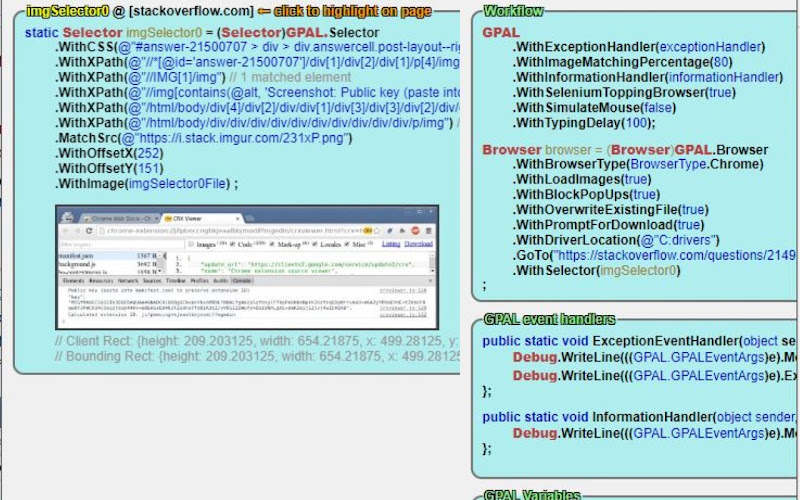
Lorem ipsum dolor sit amet consectetur adipisicing elit. Obcaecati, iste distinctio veritatis eligendi laboriosam illo nostrum corporis at libero vel voluptas? Expedita, facere dolores voluptatem ad ab rem assumenda soluta!
Lorem ipsum dolor, sit amet consectetur adipisicing elit. Quod veniam, quam ad expedita laborum sed at voluptates culpa ipsam ut vel. Ullam temporibus a mollitia quod aliquam ratione exercitationem nesciunt.
Lorem ipsum dolor sit amet consectetur adipisicing elit. Obcaecati, iste distinctio veritatis eligendi laboriosam illo nostrum corporis at libero vel voluptas? Expedita, facere dolores voluptatem ad ab rem assumenda soluta!
Lorem ipsum dolor, sit amet consectetur adipisicing elit. Quod veniam, quam ad expedita laborum sed at voluptates culpa ipsam ut vel. Ullam temporibus a mollitia quod aliquam ratione exercitationem nesciunt.
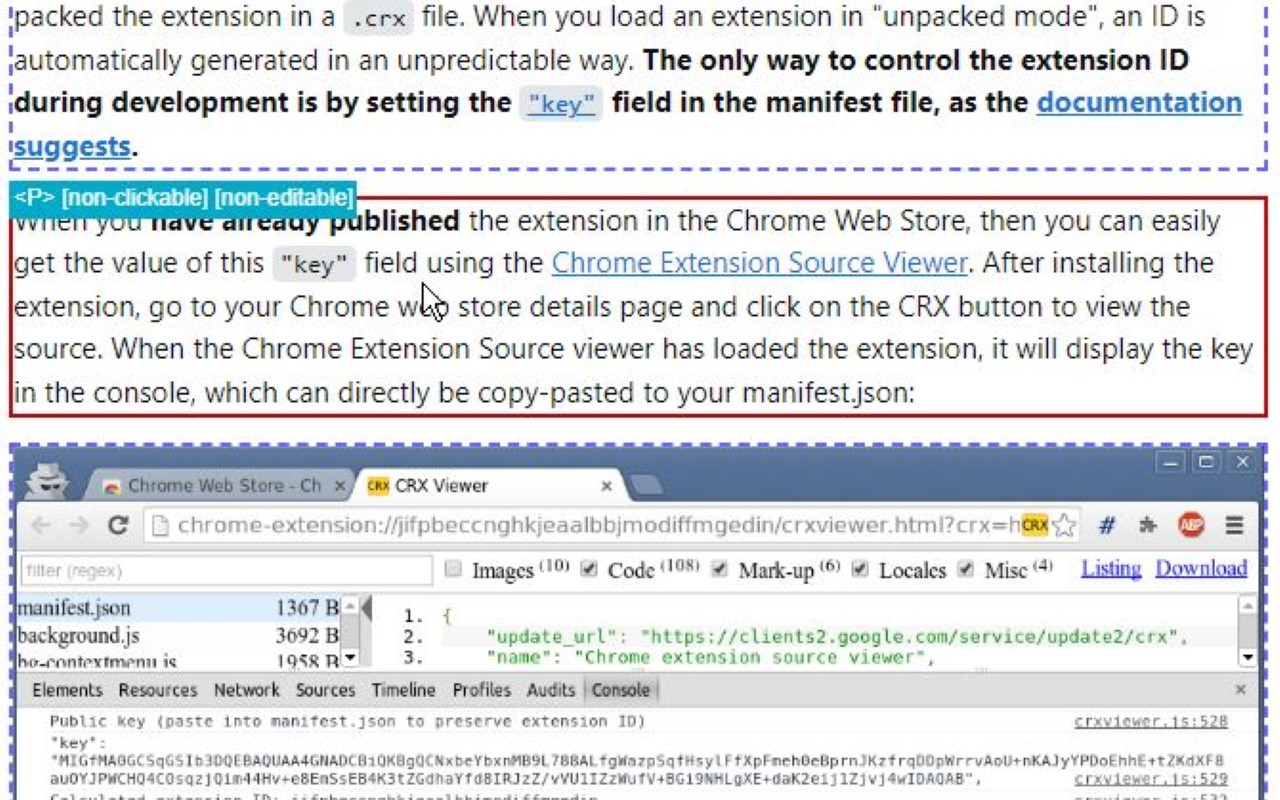
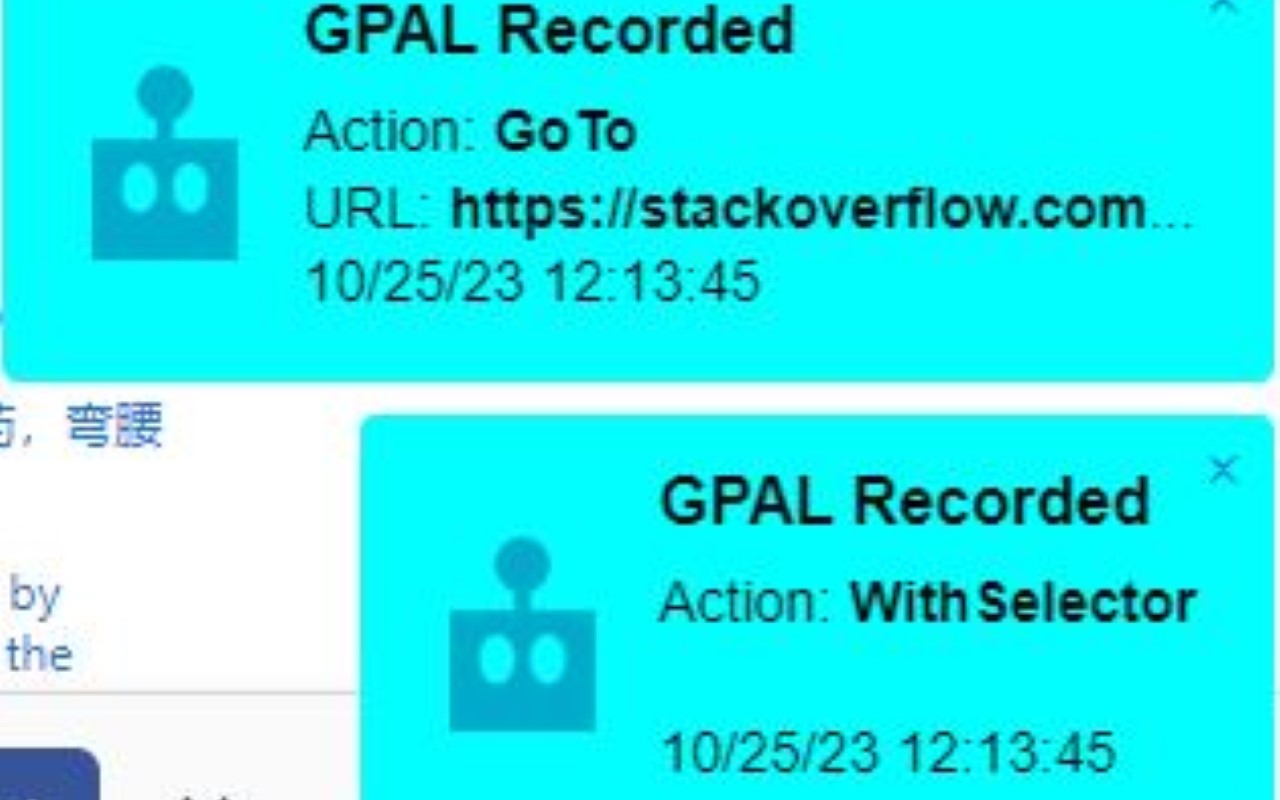
Lorem ipsum dolor sit amet consectetur adipisicing elit. Obcaecati, iste distinctio veritatis eligendi laboriosam illo nostrum corporis at libero vel voluptas? Expedita, facere dolores voluptatem ad ab rem assumenda soluta!
Coding Blocks
Lorem ipsum dolor sit amet consectetur adipisicing elit. Repudiandae quas consequuntur illo numquam assumenda autem exercitationem distinctio perspiciatis in natus. Eius dicta similique ipsam ipsa minima, nemo quae enim tempore.
GPAL
.CallIfNotFound(GenericCallIfNotFound)
.WithPublishToConsole();
//System.Drawing.Rectangle windowSize = new System.Drawing.Rectangle(10, 10, 1500, 1024);
// NOTE: we have to set browser = before we execute any steps
// this is due to the 'GenericCallIfNotFound' which might throw an exception, and BankScraper will not have the browser set when it calls scraper.Close()
// until the complete fluent line gets executed (meaning every step, meaning browser is not set until everything else succeeds)
browser = GPAL.Browser
.WithBrowserType(Enums.BrowserType.Chrome)
.WithProfileDataDirectory(ChromeProfileLocation)
.WithUseAutomationEngine(AutomationEngine.Selenium)
.WithWindowSize(new System.Drawing.Rectangle(0,0,1920,1080))
.ToGPALObject();
Documentation
Showing off some plain text in these paragraphs eligendi laboriosam illo nostrum corporis at libero vel voluptas? Expedita, facere dolores voluptatem ad ab rem assumenda soluta!
Lorem ipsum dolor sit amet consectetur adipisicing elit. Obcaecati, iste distinctio veritatis eligendi laboriosam illo nostrum corporis at libero vel voluptas? Expedita, facere dolores voluptatem ad ab rem assumenda soluta!
Lorem ipsum dolor sit amet consectetur adipisicing elit. Obcaecati, iste distinctio veritatis eligendi laboriosam illo nostrum corporis at libero vel voluptas? Expedita, facere dolores voluptatem ad ab rem assumenda soluta!
Category
-
Endpoint
Lorem ipsum dolor sit amet consectetur adipisicing elit. Quo veniam mollitia excepturi animi eum illum non libero sapiente provident assumenda, delectus voluptatum nobis sed dolorem adipisci laudantium incidunt. Error, ratione?
-
Enpoint
Lorem ipsum dolor sit amet consectetur adipisicing elit. Quo veniam mollitia excepturi animi eum illum non libero sapiente provident assumenda, delectus voluptatum nobis sed dolorem adipisci laudantium incidunt. Error, ratione?
-
Enpoint
Lorem ipsum dolor sit amet consectetur adipisicing elit. Quo veniam mollitia excepturi animi eum illum non libero sapiente provident assumenda, delectus voluptatum nobis sed dolorem adipisci laudantium incidunt. Error, ratione?
-
Enpoint
Lorem ipsum dolor sit amet consectetur adipisicing elit. Quo veniam mollitia excepturi animi eum illum non libero sapiente provident assumenda, delectus voluptatum nobis sed dolorem adipisci laudantium incidunt. Error, ratione?
Other formats
Here you can find different accents and emphasis sit amet consectetur adipisicing elit. Obcaecati, iste distinctio veritatis eligendi laboriosam illo nostrum corporis at libero vel voluptas? Expedita, facere dolores voluptatem ad ab rem assumenda soluta!
This is a link and how it could look like bestlinkinthebeautifulworld. Obcaecati, iste distinctio veritatis eligendi laboriosam illo nostrum corporis at libero vel voluptas? Expedita, facere dolores voluptatem ad ab rem assumenda soluta!
Here's just some classic bold text adipisicing elit. Obcaecati, iste distinctio veritatis eligendi laboriosam notBoldSecondbestlinkinthebeautifulworld illo nostrum corporis at libero vel voluptas? Expedita, facere dolores voluptatem ad ab rem assumenda soluta!
Obcaecati, iste distinctio veritatis eligendi laboriosam adipisicing elit illo nostrum corporis at adipisicing elit libero vel voluptas? Expedita, adipisicing facere dolores voluptatem ad ab rem assumenda soluta!
Other cuple of colors in case we want to emphasize several ways adipisicing elit. Obcaecati, iste distinctio veritatis eligendi laboriosam adipisicing elit illo nostrum corporis at voluptatem libero vel voluptas? Expedita, facere dolores voluptatem ad ab rem assumenda soluta!
Adding Images to the content
Lorem ipsum dolor sit amet consectetur adipisicing elit. Obcaecati, iste distinctio veritatis eligendi laboriosam illo nostrum corporis at libero vel voluptas? Expedita, facere dolores voluptatem ad ab rem assumenda soluta! Lorem ipsum dolor, sit amet consectetur adipisicing elit. Quod veniam, quam ad expedita laborum sed at voluptates culpa ipsam ut vel. Ullam temporibus a mollitia quod aliquam ratione exercitationem nesciunt.
Lorem ipsum dolor sit amet consectetur adipisicing elit. Obcaecati, iste distinctio veritatis eligendi laboriosam illo nostrum corporis at libero vel voluptas? Expedita, facere dolores voluptatem ad ab rem assumenda soluta! Lorem ipsum dolor, sit amet consectetur adipisicing elit. Quod veniam, quam ad expedita laborum sed at voluptates culpa ipsam ut vel. Ullam temporibus a mollitia quod aliquam ratione exercitationem nesciunt.
Lorem ipsum dolor sit amet consectetur adipisicing elit. Obcaecati, iste distinctio veritatis eligendi laboriosam illo nostrum corporis at libero vel voluptas? Expedita, facere dolores voluptatem ad ab rem assumenda soluta!
Coding Blocks
Lorem ipsum dolor sit amet consectetur adipisicing elit. Repudiandae quas consequuntur illo numquam assumenda autem exercitationem distinctio perspiciatis in natus. Eius dicta similique ipsam ipsa minima, nemo quae enim tempore.
GPAL
.CallIfNotFound(GenericCallIfNotFound)
.WithPublishToConsole();
//System.Drawing.Rectangle windowSize = new System.Drawing.Rectangle(10, 10, 1500, 1024);
// NOTE: we have to set browser = before we execute any steps
// this is due to the 'GenericCallIfNotFound' which might throw an exception, and BankScraper will not have the browser set when it calls scraper.Close()
// until the complete fluent line gets executed (meaning every step, meaning browser is not set until everything else succeeds)
browser = GPAL.Browser
.WithBrowserType(Enums.BrowserType.Chrome)
.WithProfileDataDirectory(ChromeProfileLocation)
.WithUseAutomationEngine(AutomationEngine.Selenium)
.WithWindowSize(new System.Drawing.Rectangle(0,0,1920,1080))
.ToGPALObject();