- AI
- Application
- Base64Helper
- Browser
- Clipboard
- Converter
- Credentials
- Database
- Excel
- File
- Form
- Gherkin
- GoogleDrive
- GoogleSheets
- Grid
- ImageHelper
- Launcher
- Logger
- PuppeteerClient
- Request
- RESTClient
- Selector
- Url
- Cryptography
- YouTube
Form
- Form Layout and Controls
- Showing and Hiding Forms
- Filling Forms with Data
- AI Input and Output Controls
- Settings Every Control Takes
- GPALButton
- GPALCheckBox
- GPALRadioButton
- GPALInput
- GPALTextArea
- GPALLabel
- GPALLinkLabel
- GPALSpacer
- GPALComboBox
- GPALListView
- GPALDataGridView
- GPALChart
- GPALDateTimePicker
- GPALNumericUpDown
- GPALFileSelector
- GPALTab
- GPALMenuBar, GPALToolbar and GPALBarItem
- GPALTreeView
- GPALPicture
- GPALProgressBar
- GPALStatusStrip
- GPALGroupBox
- GPALSplitter
- GPALSlider
- GPALRichTextBox
- GPALTableLayoutPanel
Form
Settings Every Control Takes
Every control is built from its GPAL factory, GPAL.Button, GPAL.Input, GPAL.ListView and so on, and every one of them takes the settings on this page.
WithName gives the control the name a workflow and UIAutomation find it by. WithText sets the text it displays. WithWidth and WithHeight set its size in pixels, and a control given a width keeps that width and sits centered rather than stretching across the form.
WithToolTip sets the hover text and WithToolTipDelay how long that text stays on screen, five seconds without one and never less than one. WithShortcutKey binds a Keys combination that acts on the control. WithTag holds any object alongside the control for the workflow's own use, and GPAL never reads it. ToGPALObject ends the chain and hands back the control to pass to WithFormControl.
Text controls also take WithFont, WithTextAlignment for where the text sits inside the control, and WithAutoSize to let the control size itself to its text.
WithEnabled(false) greys a control out, and the Enabled property reads and writes the same state while the form is up, from any thread. WithReadOnly shows a value without letting it be edited, on the controls that hold one. WithPlaceholder sets the grey prompt shown while a field is empty. WithChecked presets a checkbox or radio button, and Default on a button makes it the one Enter presses.
Callbacks are the same everywhere. WithCallback takes the handler and ForEvent names which event it answers, one of Click, DoubleClick, TextChanged, SelectedIndexChanged, CheckedChanged, ValueChanged, AfterSelect, KeyDown, Scroll, ItemChecked, CellValueChanged, SplitterMoved, DragDrop, DragEnter, DragLeave or DragOver.
Without ForEvent the handler is wired to whatever that control treats as its primary event: Click for a button, a label, a picture and a chart, CheckedChanged for a checkbox and a radio button, TextChanged for an input, a text area, a rich text box and a file selector, ValueChanged for a slider, a numeric up-down and a date picker, SelectedIndexChanged for a combo box, a list view and a tab, CellValueChanged for a data grid, and AfterSelect for a tree view.
A splitter answers SplitterMoved, which is where the user dragged the divider to, and that is its default. A group box and a table layout panel hold controls rather than being interacted with, so a handler belongs on what is inside them. A menu bar and a toolbar are the same: each GPALBarItem carries its own callback, defaulting to Click.
WithCallbackOffUIThread runs the handler on a worker thread instead, so the form keeps painting while it works, and GPAL controls the handler sets marshal themselves. It takes any of the handler types below except the two the event reads an answer from as the handler returns, a drag handler setting args.Effect and a key handler setting args.Handled. Those stay on the UI thread and GPAL publishes a WARNING saying so.
The type argument to WithCallback is the delegate the event carries. Most of them carry EventHandler, which is why nearly every sample in these pages says WithCallback
Two names are portable across controls but do not carry the same delegate on each one. Scroll is ScrollEventHandler on a tab and EventHandler on a slider. Change is a convenience that resolves to whatever the control calls changing, so it is DataGridViewCellEventHandler on a data grid, TreeViewEventHandler on a tree view, and EventHandler everywhere else it is offered. Default has the same shape: it attaches to the control's primary event, so its delegate is whatever that event carries.
A file selector is the one control whose handler is given something other than the event's own arguments. Its Default, Change and Click callbacks are EventHandler, but what arrives is a FileSelectorEventArgs, delivered when the dialog closes rather than when the path box changes. Cast the args to read Cancelled, SelectedPath and SelectedPaths, which is how a workflow tells a cancelled dialog from a chosen file. TextChanged is the exception and behaves normally, since that is the path box's own event.
WithName narrows the chain to the settings every control shares, so anything specific to that control has to come before it. WithEnabled, WithReadOnly, WithChecked, WithPlaceholder, WithItems, WithColumns and Default all belong ahead of WithName. This is the single ordering rule the form API has.
WithCallback takes the handler as a type argument and GPAL casts it to what the event expects when the form is built. A handler of the wrong type is not a compile error; it throws at that moment. If a form fails as it is being shown and the message names a cast, this is why: check the delegate against the event, not the control.
Examples
//Each control is declared as its own field so a handler can reach it by name. The cast is to the control type, GPALButton, GPALInput, GPALLabel, which is the same thing ToGPALObject hands back. WithCallback is a list rather than a single slot, so a control can carry as many handlers as it needs and ForEvent applies to the WithCallback immediately before it. A WithCallback with no ForEvent after it goes to the control's primary event, which is Click on a button and TextChanged on an input. Keep each pair together in the chain and the reading order is the declaration order. The handler's own signature comes from the delegate, which is the practical reason the type argument matters: EmailKeyDown takes KeyEventArgs and can therefore read KeyCode, which an EventHandler never could.
// the same settings, on three different controls
GPALButton save = (GPALButton)GPAL
// two handlers on one control
// so each pair is read together and the order in the chain is the order they are declared
GPALInput email = (GPALInput)GPAL
GPALLabel heading = (GPALLabel)GPAL
// every setting is a property as well, so the workflow or another control's handler can change it
// after the form is built
email
// the handlers
void SaveClicked(object sender, EventArgs args)
{
// whatever saving means for this form
}
void EmailChanged(object sender, EventArgs args)
{
save
}
void EmailKeyDown(object sender, KeyEventArgs args)
{
// Enter in the box does what Save does, and args
if (Keys
{
args
SaveClicked(sender, args);
}
}
Documentation Example
Documentation
Showing off some plain text in these paragraphs eligendi laboriosam illo nostrum corporis at libero vel voluptas? Expedita, facere dolores voluptatem ad ab rem assumenda soluta!
Lorem ipsum dolor sit amet consectetur adipisicing elit. Obcaecati, iste distinctio veritatis eligendi laboriosam illo nostrum corporis at libero vel voluptas? Expedita, facere dolores voluptatem ad ab rem assumenda soluta!
Lorem ipsum dolor sit amet consectetur adipisicing elit. Obcaecati, iste distinctio veritatis eligendi laboriosam illo nostrum corporis at libero vel voluptas? Expedita, facere dolores voluptatem ad ab rem assumenda soluta!
Category
-
Endpoint
Lorem ipsum dolor sit amet consectetur adipisicing elit. Quo veniam mollitia excepturi animi eum illum non libero sapiente provident assumenda, delectus voluptatum nobis sed dolorem adipisci laudantium incidunt. Error, ratione?
-
Enpoint
Lorem ipsum dolor sit amet consectetur adipisicing elit. Quo veniam mollitia excepturi animi eum illum non libero sapiente provident assumenda, delectus voluptatum nobis sed dolorem adipisci laudantium incidunt. Error, ratione?
-
Enpoint
Lorem ipsum dolor sit amet consectetur adipisicing elit. Quo veniam mollitia excepturi animi eum illum non libero sapiente provident assumenda, delectus voluptatum nobis sed dolorem adipisci laudantium incidunt. Error, ratione?
-
Enpoint
Lorem ipsum dolor sit amet consectetur adipisicing elit. Quo veniam mollitia excepturi animi eum illum non libero sapiente provident assumenda, delectus voluptatum nobis sed dolorem adipisci laudantium incidunt. Error, ratione?
Other formats
Here you can find different accents and emphasis sit amet consectetur adipisicing elit. Obcaecati, iste distinctio veritatis eligendi laboriosam illo nostrum corporis at libero vel voluptas? Expedita, facere dolores voluptatem ad ab rem assumenda soluta!
This is a link and how it could look like bestlinkinthebeautifulworld. Obcaecati, iste distinctio veritatis eligendi laboriosam illo nostrum corporis at libero vel voluptas? Expedita, facere dolores voluptatem ad ab rem assumenda soluta!
Here's just some classic bold text adipisicing elit. Obcaecati, iste distinctio veritatis eligendi laboriosam notBoldSecondbestlinkinthebeautifulworld illo nostrum corporis at libero vel voluptas? Expedita, facere dolores voluptatem ad ab rem assumenda soluta!
Obcaecati, iste distinctio veritatis eligendi laboriosam adipisicing elit illo nostrum corporis at adipisicing elit libero vel voluptas? Expedita, adipisicing facere dolores voluptatem ad ab rem assumenda soluta!
Other cuple of colors in case we want to emphasize several ways adipisicing elit. Obcaecati, iste distinctio veritatis eligendi laboriosam adipisicing elit illo nostrum corporis at voluptatem libero vel voluptas? Expedita, facere dolores voluptatem ad ab rem assumenda soluta!
Adding Images to the content
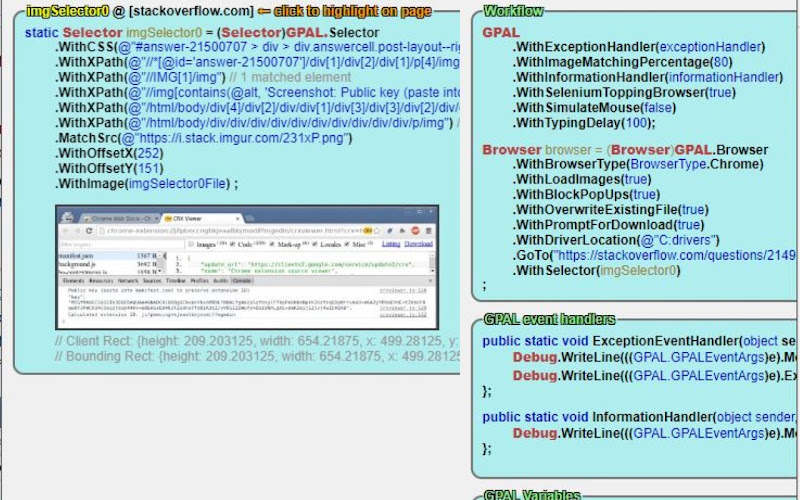
Lorem ipsum dolor sit amet consectetur adipisicing elit. Obcaecati, iste distinctio veritatis eligendi laboriosam illo nostrum corporis at libero vel voluptas? Expedita, facere dolores voluptatem ad ab rem assumenda soluta!
Lorem ipsum dolor, sit amet consectetur adipisicing elit. Quod veniam, quam ad expedita laborum sed at voluptates culpa ipsam ut vel. Ullam temporibus a mollitia quod aliquam ratione exercitationem nesciunt.
Lorem ipsum dolor sit amet consectetur adipisicing elit. Obcaecati, iste distinctio veritatis eligendi laboriosam illo nostrum corporis at libero vel voluptas? Expedita, facere dolores voluptatem ad ab rem assumenda soluta!
Lorem ipsum dolor, sit amet consectetur adipisicing elit. Quod veniam, quam ad expedita laborum sed at voluptates culpa ipsam ut vel. Ullam temporibus a mollitia quod aliquam ratione exercitationem nesciunt.
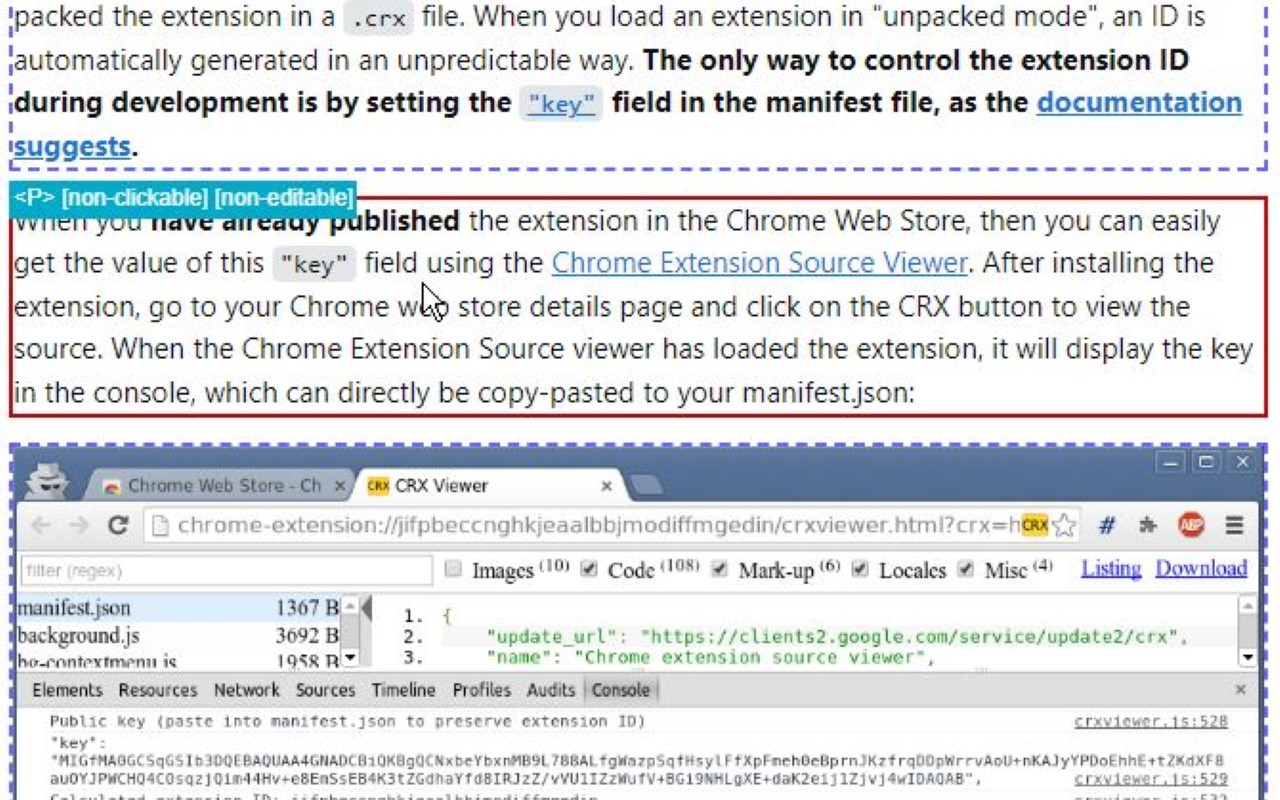
Lorem ipsum dolor sit amet consectetur adipisicing elit. Obcaecati, iste distinctio veritatis eligendi laboriosam illo nostrum corporis at libero vel voluptas? Expedita, facere dolores voluptatem ad ab rem assumenda soluta!
Coding Blocks
Lorem ipsum dolor sit amet consectetur adipisicing elit. Repudiandae quas consequuntur illo numquam assumenda autem exercitationem distinctio perspiciatis in natus. Eius dicta similique ipsam ipsa minima, nemo quae enim tempore.
GPAL
.CallIfNotFound(GenericCallIfNotFound)
.WithPublishToConsole();
//System.Drawing.Rectangle windowSize = new System.Drawing.Rectangle(10, 10, 1500, 1024);
// NOTE: we have to set browser = before we execute any steps
// this is due to the 'GenericCallIfNotFound' which might throw an exception, and BankScraper will not have the browser set when it calls scraper.Close()
// until the complete fluent line gets executed (meaning every step, meaning browser is not set until everything else succeeds)
browser = GPAL.Browser
.WithBrowserType(Enums.BrowserType.Chrome)
.WithProfileDataDirectory(ChromeProfileLocation)
.WithUseAutomationEngine(AutomationEngine.Selenium)
.WithWindowSize(new System.Drawing.Rectangle(0,0,1920,1080))
.ToGPALObject();
Documentation
Showing off some plain text in these paragraphs eligendi laboriosam illo nostrum corporis at libero vel voluptas? Expedita, facere dolores voluptatem ad ab rem assumenda soluta!
Lorem ipsum dolor sit amet consectetur adipisicing elit. Obcaecati, iste distinctio veritatis eligendi laboriosam illo nostrum corporis at libero vel voluptas? Expedita, facere dolores voluptatem ad ab rem assumenda soluta!
Lorem ipsum dolor sit amet consectetur adipisicing elit. Obcaecati, iste distinctio veritatis eligendi laboriosam illo nostrum corporis at libero vel voluptas? Expedita, facere dolores voluptatem ad ab rem assumenda soluta!
Category
-
Endpoint
Lorem ipsum dolor sit amet consectetur adipisicing elit. Quo veniam mollitia excepturi animi eum illum non libero sapiente provident assumenda, delectus voluptatum nobis sed dolorem adipisci laudantium incidunt. Error, ratione?
-
Enpoint
Lorem ipsum dolor sit amet consectetur adipisicing elit. Quo veniam mollitia excepturi animi eum illum non libero sapiente provident assumenda, delectus voluptatum nobis sed dolorem adipisci laudantium incidunt. Error, ratione?
-
Enpoint
Lorem ipsum dolor sit amet consectetur adipisicing elit. Quo veniam mollitia excepturi animi eum illum non libero sapiente provident assumenda, delectus voluptatum nobis sed dolorem adipisci laudantium incidunt. Error, ratione?
-
Enpoint
Lorem ipsum dolor sit amet consectetur adipisicing elit. Quo veniam mollitia excepturi animi eum illum non libero sapiente provident assumenda, delectus voluptatum nobis sed dolorem adipisci laudantium incidunt. Error, ratione?
Other formats
Here you can find different accents and emphasis sit amet consectetur adipisicing elit. Obcaecati, iste distinctio veritatis eligendi laboriosam illo nostrum corporis at libero vel voluptas? Expedita, facere dolores voluptatem ad ab rem assumenda soluta!
This is a link and how it could look like bestlinkinthebeautifulworld. Obcaecati, iste distinctio veritatis eligendi laboriosam illo nostrum corporis at libero vel voluptas? Expedita, facere dolores voluptatem ad ab rem assumenda soluta!
Here's just some classic bold text adipisicing elit. Obcaecati, iste distinctio veritatis eligendi laboriosam notBoldSecondbestlinkinthebeautifulworld illo nostrum corporis at libero vel voluptas? Expedita, facere dolores voluptatem ad ab rem assumenda soluta!
Obcaecati, iste distinctio veritatis eligendi laboriosam adipisicing elit illo nostrum corporis at adipisicing elit libero vel voluptas? Expedita, adipisicing facere dolores voluptatem ad ab rem assumenda soluta!
Other cuple of colors in case we want to emphasize several ways adipisicing elit. Obcaecati, iste distinctio veritatis eligendi laboriosam adipisicing elit illo nostrum corporis at voluptatem libero vel voluptas? Expedita, facere dolores voluptatem ad ab rem assumenda soluta!
Adding Images to the content
Lorem ipsum dolor sit amet consectetur adipisicing elit. Obcaecati, iste distinctio veritatis eligendi laboriosam illo nostrum corporis at libero vel voluptas? Expedita, facere dolores voluptatem ad ab rem assumenda soluta! Lorem ipsum dolor, sit amet consectetur adipisicing elit. Quod veniam, quam ad expedita laborum sed at voluptates culpa ipsam ut vel. Ullam temporibus a mollitia quod aliquam ratione exercitationem nesciunt.
Lorem ipsum dolor sit amet consectetur adipisicing elit. Obcaecati, iste distinctio veritatis eligendi laboriosam illo nostrum corporis at libero vel voluptas? Expedita, facere dolores voluptatem ad ab rem assumenda soluta! Lorem ipsum dolor, sit amet consectetur adipisicing elit. Quod veniam, quam ad expedita laborum sed at voluptates culpa ipsam ut vel. Ullam temporibus a mollitia quod aliquam ratione exercitationem nesciunt.
Lorem ipsum dolor sit amet consectetur adipisicing elit. Obcaecati, iste distinctio veritatis eligendi laboriosam illo nostrum corporis at libero vel voluptas? Expedita, facere dolores voluptatem ad ab rem assumenda soluta!
Coding Blocks
Lorem ipsum dolor sit amet consectetur adipisicing elit. Repudiandae quas consequuntur illo numquam assumenda autem exercitationem distinctio perspiciatis in natus. Eius dicta similique ipsam ipsa minima, nemo quae enim tempore.
GPAL
.CallIfNotFound(GenericCallIfNotFound)
.WithPublishToConsole();
//System.Drawing.Rectangle windowSize = new System.Drawing.Rectangle(10, 10, 1500, 1024);
// NOTE: we have to set browser = before we execute any steps
// this is due to the 'GenericCallIfNotFound' which might throw an exception, and BankScraper will not have the browser set when it calls scraper.Close()
// until the complete fluent line gets executed (meaning every step, meaning browser is not set until everything else succeeds)
browser = GPAL.Browser
.WithBrowserType(Enums.BrowserType.Chrome)
.WithProfileDataDirectory(ChromeProfileLocation)
.WithUseAutomationEngine(AutomationEngine.Selenium)
.WithWindowSize(new System.Drawing.Rectangle(0,0,1920,1080))
.ToGPALObject();