- A Minimal OttoMagic Smoke Test
- Automating a Desktop App: Notepad++
- Automating a Login Flow with a Native Menu Selection
- Automating Microsoft Teams with Desktop Application Selectors
- Automating YouTube Studio: Navigating a Multi-Step Upload Dialog
- Behavior-Style Workflows with GPAL.Gherkin
- Building a Form: Controls, FillInFrom, and CallAfterFillIn
- Building a Live AI Summarizer Form
- Calling REST Endpoints with GPAL.RESTClient
- Casting a Tab or Desktop to a Network Device
- Chaining Browser Actions Through GPAL.RESTClient with AndThen
- Chaining Workflows: CallAfterFillIn and CallIfFound Together
- Clicking a Captcha with a GPALForm and Hardware Input
- Cross-Site Workflow: Find a Book, Then Search for It Elsewhere
- Downloading and Patching a Browser Driver Automatically
- Downloading Files with a Right-Click
- Drag and Drop with Image-Based Selectors
- Driving a Browser Directly with PuppeteerClient
- Driving a Live Browser Through GPAL.OttoMagicClient
- Driving a Search Box from a GPALFile of Search Terms
- Driving a Search Form from a Database Table
- Driving Native Dropdown Menus with SelectClick
- Driving Native Dropdowns with SelectClick
- Driving the Browser Through the REST Client
- Dropping Down to PuppeteerCommunicator: Raw Chrome DevTools Commands
- Encryption, Hashing, and Signing with GPAL Cryptography
- Filling In Special-Format Inputs: Color, Date, Time, and More
- GPALConverter: Moving Data Between CSV, JSON, XML, YAML, and Classes
- Handling Cookie Banners and Popups with Persistent Selectors
- Image Matching and Selectors Inside Iframes
- Inside the GPAL REST API Server (OttoMagic's Backend)
- Launching Chrome with a Real Browser Profile
- Layer-by-Layer: Click, Fill In, and Read
- Left Click and Upload: Driving a File Picker
- Left-Click and Download a File
- Logging to a Database and Sending Email with GPAL
- Pacing a Workflow with WaitFor
- Paging with Workflows: While and Until
- Reading, Writing, and Clearing Browser Storage
- Reading, Writing, and Formatting Google Sheets
- Recording and Replaying a Selector Sequence
- Searching the Web with GPAL.GoogleDorking
- Talking to an OpenAPI-Described Service
- Testing Stealth Against Anti-Bot Detection Sites
- Walking Sitemaps and Capturing Page Digests
- Working with Spreadsheets: GPAL.Excel End to End
Tutorials
Downloading Files with a Right-Click
Some links only offer a file when you right-click and choose Save Link As, rather than a normal left-click download. RightClickAndDownload drives that context-menu flow for you, and GPALFile.ReturnFilenames tells you exactly what landed on disk and where.
Complete Program
Here's the whole workflow, start to finish. Each piece is broken down and explained below.
using GenerallyPositive;
using GenerallyPositive.Browser;
using static GenerallyPositive.Enums;
using System.Diagnostics;
GPAL
.WithPublishToConsole()
.WithDriverLocation(@"C:drivers")
.WithUseOttoMagic(@"C:OttoMagic");
Selector linkSelector = GPAL.Selector
.WithXPath("//a[normalize-space()='How to Download files in Selenium Webdriver']")
.WithSelectorName("Download Link")
.WithOffsetY(5)
.ToGPALObject();
GPALFile fileList = @"c:sdi est.html";
IBrowser browser = GPAL.Browser
.WithBrowserType(BrowserType.Chrome)
.WithUseAutomationEngine(AutomationEngine.OttoMagic)
.WithDownloadLocation(@"c:downloads")
.WithDriverLocation(@"c:drivers")
.WithOverwriteExistingFile(false)
.WithUseDirectDownload(true)
.ToGPALObject();
browser.GoTo("https://sqa.stackexchange.com/questions/2197/how-to-download-a-file-using-seleniums-webdriver");
browser
.WithSelector(linkSelector);
browser
.MoveTo();
browser
.RightClickAndDownload(fileList)
.Close(true);
Debug.WriteLine($"File saved to {fileList.ReturnFilenames[fileList.Filenames.Count - 1]}.");
Configuring Where Downloads Land
WithDownloadLocation tells the browser which folder to save into. WithUseDirectDownload skips any save dialog and writes straight to disk, and WithOverwriteExistingFile(false) means a download that would collide with an existing filename is renamed instead of clobbering it.
IBrowser browser = GPAL.Browser
.WithBrowserType(BrowserType.Chrome)
.WithUseAutomationEngine(AutomationEngine.OttoMagic)
.WithDownloadLocation(@"c:downloads")
.WithDriverLocation(@"c:drivers")
.WithOverwriteExistingFile(false)
.WithUseDirectDownload(true)
.ToGPALObject();
Aiming the Context Menu with WithOffsetY
WithSelector marks the link as the target for the next actions, and MoveTo moves the mouse there - which a real browser needs before a right-click context menu makes sense. WithOffsetY(5) nudges the click point a few pixels down from the element's center, which can matter when a link sits flush against neighboring text or another control.
Selector linkSelector = GPAL.Selector
.WithXPath("//a[normalize-space()='How to Download files in Selenium Webdriver']")
.WithSelectorName("Download Link")
.WithOffsetY(5)
.ToGPALObject();
browser
.WithSelector(linkSelector);
browser
.MoveTo();
WithSelectorName doesn't change how the selector matches - it just gives the selector a friendly name that shows up in GPAL's event and exception messages, making it much easier to tell which element a failure was about.
RightClickAndDownload and GPALFile
RightClickAndDownload opens the browser's context menu on the selected element, chooses the save/download option, and waits for the resulting file to appear in the configured download location. The GPALFile you pass in - fileList - is updated with the new file's path once the download completes.
GPALFile fileList = @"c:sdi est.html";
browser
.RightClickAndDownload(fileList)
.Close(true);
As with other workflows, Close(true) shuts down the browser and kills the driver process. Read anything you need from fileList before or immediately after this call, not after the driver is gone.
Reading Back the Saved Path with ReturnFilenames
fileList.Filenames is the list of names GPALFile knows about, and fileList.ReturnFilenames returns the actual paths on disk for those names - including any renaming that happened because of WithOverwriteExistingFile(false). Indexing the last entry gives you the file that was just downloaded.
Debug.WriteLine($"File saved to {fileList.ReturnFilenames[fileList.Filenames.Count - 1]}.");
Documentation Example
Documentation
Showing off some plain text in these paragraphs eligendi laboriosam illo nostrum corporis at libero vel voluptas? Expedita, facere dolores voluptatem ad ab rem assumenda soluta!
Lorem ipsum dolor sit amet consectetur adipisicing elit. Obcaecati, iste distinctio veritatis eligendi laboriosam illo nostrum corporis at libero vel voluptas? Expedita, facere dolores voluptatem ad ab rem assumenda soluta!
Lorem ipsum dolor sit amet consectetur adipisicing elit. Obcaecati, iste distinctio veritatis eligendi laboriosam illo nostrum corporis at libero vel voluptas? Expedita, facere dolores voluptatem ad ab rem assumenda soluta!
Category
-
Endpoint
Lorem ipsum dolor sit amet consectetur adipisicing elit. Quo veniam mollitia excepturi animi eum illum non libero sapiente provident assumenda, delectus voluptatum nobis sed dolorem adipisci laudantium incidunt. Error, ratione?
-
Enpoint
Lorem ipsum dolor sit amet consectetur adipisicing elit. Quo veniam mollitia excepturi animi eum illum non libero sapiente provident assumenda, delectus voluptatum nobis sed dolorem adipisci laudantium incidunt. Error, ratione?
-
Enpoint
Lorem ipsum dolor sit amet consectetur adipisicing elit. Quo veniam mollitia excepturi animi eum illum non libero sapiente provident assumenda, delectus voluptatum nobis sed dolorem adipisci laudantium incidunt. Error, ratione?
-
Enpoint
Lorem ipsum dolor sit amet consectetur adipisicing elit. Quo veniam mollitia excepturi animi eum illum non libero sapiente provident assumenda, delectus voluptatum nobis sed dolorem adipisci laudantium incidunt. Error, ratione?
Other formats
Here you can find different accents and emphasis sit amet consectetur adipisicing elit. Obcaecati, iste distinctio veritatis eligendi laboriosam illo nostrum corporis at libero vel voluptas? Expedita, facere dolores voluptatem ad ab rem assumenda soluta!
This is a link and how it could look like bestlinkinthebeautifulworld. Obcaecati, iste distinctio veritatis eligendi laboriosam illo nostrum corporis at libero vel voluptas? Expedita, facere dolores voluptatem ad ab rem assumenda soluta!
Here's just some classic bold text adipisicing elit. Obcaecati, iste distinctio veritatis eligendi laboriosam notBoldSecondbestlinkinthebeautifulworld illo nostrum corporis at libero vel voluptas? Expedita, facere dolores voluptatem ad ab rem assumenda soluta!
Obcaecati, iste distinctio veritatis eligendi laboriosam adipisicing elit illo nostrum corporis at adipisicing elit libero vel voluptas? Expedita, adipisicing facere dolores voluptatem ad ab rem assumenda soluta!
Other cuple of colors in case we want to emphasize several ways adipisicing elit. Obcaecati, iste distinctio veritatis eligendi laboriosam adipisicing elit illo nostrum corporis at voluptatem libero vel voluptas? Expedita, facere dolores voluptatem ad ab rem assumenda soluta!
Adding Images to the content
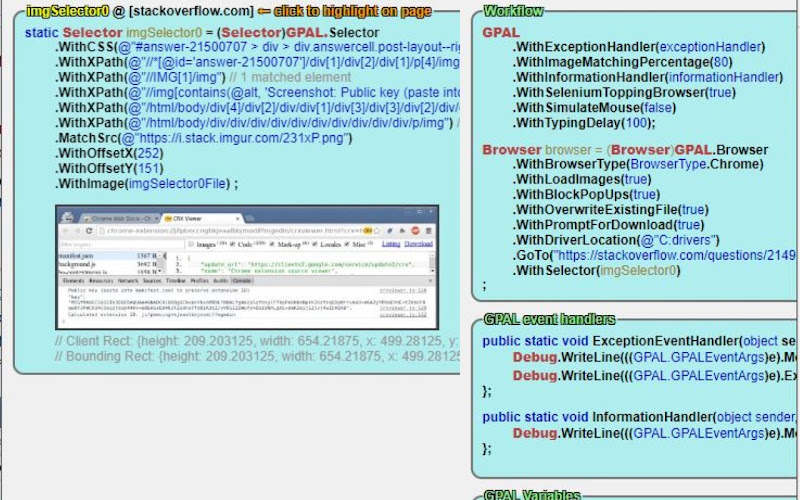
Lorem ipsum dolor sit amet consectetur adipisicing elit. Obcaecati, iste distinctio veritatis eligendi laboriosam illo nostrum corporis at libero vel voluptas? Expedita, facere dolores voluptatem ad ab rem assumenda soluta!
Lorem ipsum dolor, sit amet consectetur adipisicing elit. Quod veniam, quam ad expedita laborum sed at voluptates culpa ipsam ut vel. Ullam temporibus a mollitia quod aliquam ratione exercitationem nesciunt.
Lorem ipsum dolor sit amet consectetur adipisicing elit. Obcaecati, iste distinctio veritatis eligendi laboriosam illo nostrum corporis at libero vel voluptas? Expedita, facere dolores voluptatem ad ab rem assumenda soluta!
Lorem ipsum dolor, sit amet consectetur adipisicing elit. Quod veniam, quam ad expedita laborum sed at voluptates culpa ipsam ut vel. Ullam temporibus a mollitia quod aliquam ratione exercitationem nesciunt.
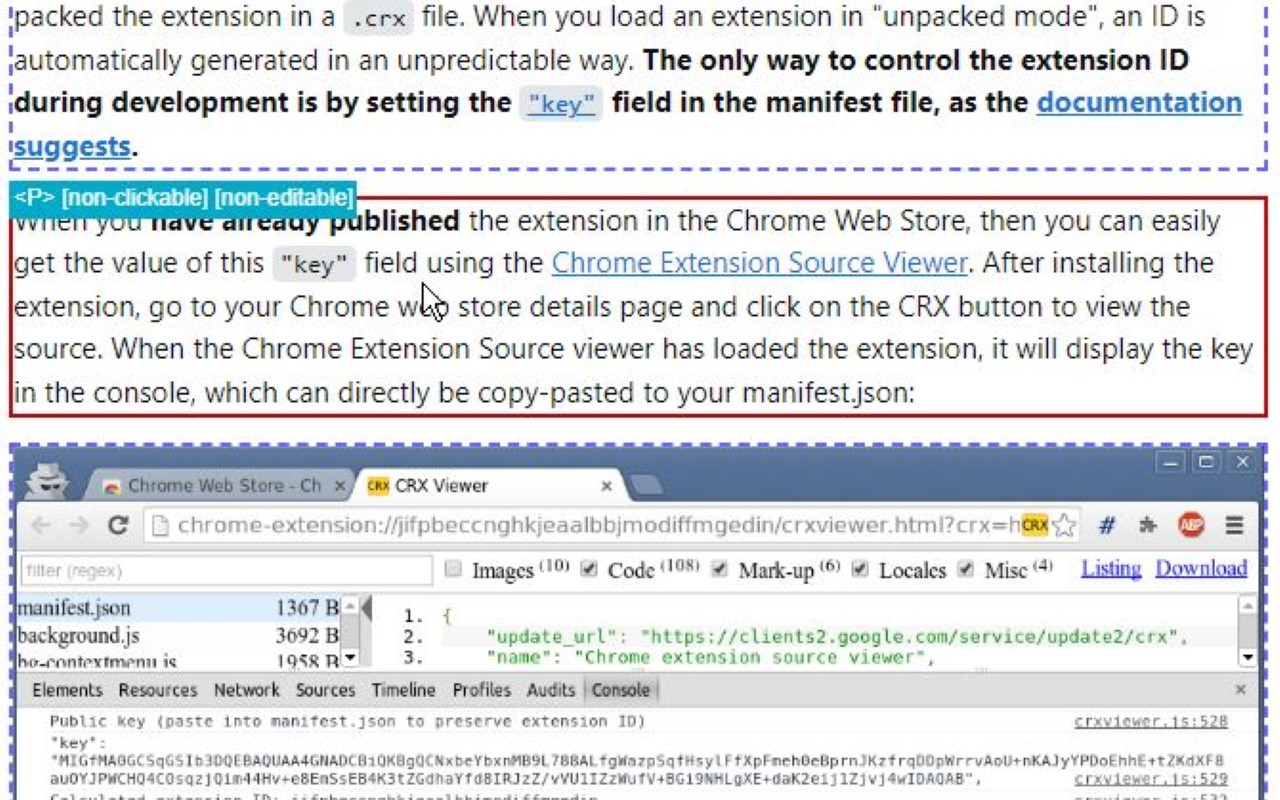
Lorem ipsum dolor sit amet consectetur adipisicing elit. Obcaecati, iste distinctio veritatis eligendi laboriosam illo nostrum corporis at libero vel voluptas? Expedita, facere dolores voluptatem ad ab rem assumenda soluta!
Coding Blocks
Lorem ipsum dolor sit amet consectetur adipisicing elit. Repudiandae quas consequuntur illo numquam assumenda autem exercitationem distinctio perspiciatis in natus. Eius dicta similique ipsam ipsa minima, nemo quae enim tempore.
GPAL
.CallIfNotFound(GenericCallIfNotFound)
.WithPublishToConsole();
//System.Drawing.Rectangle windowSize = new System.Drawing.Rectangle(10, 10, 1500, 1024);
// NOTE: we have to set browser = before we execute any steps
// this is due to the 'GenericCallIfNotFound' which might throw an exception, and BankScraper will not have the browser set when it calls scraper.Close()
// until the complete fluent line gets executed (meaning every step, meaning browser is not set until everything else succeeds)
browser = GPAL.Browser
.WithBrowserType(Enums.BrowserType.Chrome)
.WithProfileDataDirectory(ChromeProfileLocation)
.WithUseAutomationEngine(AutomationEngine.Selenium)
.WithWindowSize(new System.Drawing.Rectangle(0,0,1920,1080))
.ToGPALObject();
Documentation
Showing off some plain text in these paragraphs eligendi laboriosam illo nostrum corporis at libero vel voluptas? Expedita, facere dolores voluptatem ad ab rem assumenda soluta!
Lorem ipsum dolor sit amet consectetur adipisicing elit. Obcaecati, iste distinctio veritatis eligendi laboriosam illo nostrum corporis at libero vel voluptas? Expedita, facere dolores voluptatem ad ab rem assumenda soluta!
Lorem ipsum dolor sit amet consectetur adipisicing elit. Obcaecati, iste distinctio veritatis eligendi laboriosam illo nostrum corporis at libero vel voluptas? Expedita, facere dolores voluptatem ad ab rem assumenda soluta!
Category
-
Endpoint
Lorem ipsum dolor sit amet consectetur adipisicing elit. Quo veniam mollitia excepturi animi eum illum non libero sapiente provident assumenda, delectus voluptatum nobis sed dolorem adipisci laudantium incidunt. Error, ratione?
-
Enpoint
Lorem ipsum dolor sit amet consectetur adipisicing elit. Quo veniam mollitia excepturi animi eum illum non libero sapiente provident assumenda, delectus voluptatum nobis sed dolorem adipisci laudantium incidunt. Error, ratione?
-
Enpoint
Lorem ipsum dolor sit amet consectetur adipisicing elit. Quo veniam mollitia excepturi animi eum illum non libero sapiente provident assumenda, delectus voluptatum nobis sed dolorem adipisci laudantium incidunt. Error, ratione?
-
Enpoint
Lorem ipsum dolor sit amet consectetur adipisicing elit. Quo veniam mollitia excepturi animi eum illum non libero sapiente provident assumenda, delectus voluptatum nobis sed dolorem adipisci laudantium incidunt. Error, ratione?
Other formats
Here you can find different accents and emphasis sit amet consectetur adipisicing elit. Obcaecati, iste distinctio veritatis eligendi laboriosam illo nostrum corporis at libero vel voluptas? Expedita, facere dolores voluptatem ad ab rem assumenda soluta!
This is a link and how it could look like bestlinkinthebeautifulworld. Obcaecati, iste distinctio veritatis eligendi laboriosam illo nostrum corporis at libero vel voluptas? Expedita, facere dolores voluptatem ad ab rem assumenda soluta!
Here's just some classic bold text adipisicing elit. Obcaecati, iste distinctio veritatis eligendi laboriosam notBoldSecondbestlinkinthebeautifulworld illo nostrum corporis at libero vel voluptas? Expedita, facere dolores voluptatem ad ab rem assumenda soluta!
Obcaecati, iste distinctio veritatis eligendi laboriosam adipisicing elit illo nostrum corporis at adipisicing elit libero vel voluptas? Expedita, adipisicing facere dolores voluptatem ad ab rem assumenda soluta!
Other cuple of colors in case we want to emphasize several ways adipisicing elit. Obcaecati, iste distinctio veritatis eligendi laboriosam adipisicing elit illo nostrum corporis at voluptatem libero vel voluptas? Expedita, facere dolores voluptatem ad ab rem assumenda soluta!
Adding Images to the content
Lorem ipsum dolor sit amet consectetur adipisicing elit. Obcaecati, iste distinctio veritatis eligendi laboriosam illo nostrum corporis at libero vel voluptas? Expedita, facere dolores voluptatem ad ab rem assumenda soluta! Lorem ipsum dolor, sit amet consectetur adipisicing elit. Quod veniam, quam ad expedita laborum sed at voluptates culpa ipsam ut vel. Ullam temporibus a mollitia quod aliquam ratione exercitationem nesciunt.
Lorem ipsum dolor sit amet consectetur adipisicing elit. Obcaecati, iste distinctio veritatis eligendi laboriosam illo nostrum corporis at libero vel voluptas? Expedita, facere dolores voluptatem ad ab rem assumenda soluta! Lorem ipsum dolor, sit amet consectetur adipisicing elit. Quod veniam, quam ad expedita laborum sed at voluptates culpa ipsam ut vel. Ullam temporibus a mollitia quod aliquam ratione exercitationem nesciunt.
Lorem ipsum dolor sit amet consectetur adipisicing elit. Obcaecati, iste distinctio veritatis eligendi laboriosam illo nostrum corporis at libero vel voluptas? Expedita, facere dolores voluptatem ad ab rem assumenda soluta!
Coding Blocks
Lorem ipsum dolor sit amet consectetur adipisicing elit. Repudiandae quas consequuntur illo numquam assumenda autem exercitationem distinctio perspiciatis in natus. Eius dicta similique ipsam ipsa minima, nemo quae enim tempore.
GPAL
.CallIfNotFound(GenericCallIfNotFound)
.WithPublishToConsole();
//System.Drawing.Rectangle windowSize = new System.Drawing.Rectangle(10, 10, 1500, 1024);
// NOTE: we have to set browser = before we execute any steps
// this is due to the 'GenericCallIfNotFound' which might throw an exception, and BankScraper will not have the browser set when it calls scraper.Close()
// until the complete fluent line gets executed (meaning every step, meaning browser is not set until everything else succeeds)
browser = GPAL.Browser
.WithBrowserType(Enums.BrowserType.Chrome)
.WithProfileDataDirectory(ChromeProfileLocation)
.WithUseAutomationEngine(AutomationEngine.Selenium)
.WithWindowSize(new System.Drawing.Rectangle(0,0,1920,1080))
.ToGPALObject();